User Adaptive Public Subsets in IBM Planning Analytics Workspace
One of the key requirements to create a user friendly business application in IBM Planning Analytics Workspace (PAW) is to be able to customize the...
6 min read
Below is an overview of the PAW backup process using Lifecycle Manager (LCM). For a full 27-page step-by-step guide with detailed screenshots, instructions and a customer communication template, download the ACG Solution Brief.
IBM Planning Analytics Workspace (PAW) is the modern web-based interface for TM1/Planning Analytics. It hosts a wide range of user-created and administrator-managed content that lives outside the traditional TM1 database files:
Traditional TM1 backups protect the TM1 database layer, including cubes, dimensions, rules, feeders, and TI processes. However, PAW's content layer requires a separate approach. Given the volume and variety of content that users create within PAW, it is imperative that administrators ensure this content is protected and recoverable in the event of a DR scenario. Once IBM's own DR procedures have restored the TM1 environment, administrators can then use their PAW backup to recreate all content from their stored export.
The most effective approach today to back up your PAW content is to use IBM Planning Analytics Lifecycle Manager (LCM) to create snapshots of the PAW environment.
Lifecycle Manager (LCM) is a built-in tool that allows administrators to export the full PAW content bundle— essentially a complete snapshot of the PAW environment— into a portable .GZ file. This file can then be stored safely and used to restore the environment in case of a DR event.
However, LCM is not a complete solution on its own. It does not include TM1 data (which remains covered by standard backups), and it also does not capture PAW users or groups. Those elements must be exported separately to ensure that access and security can be restored alongside the content.
|
Content Type |
Included in LCM Export? |
|
Shared Dashboards & Books |
✅ Yes |
|
Shared Templates |
✅ Yes |
|
Report-level Permissions |
✅ Yes — travel with the asset |
|
Application Tiles & Navigation |
✅ Yes |
|
Workspace Configurations |
✅ Yes |
|
Personal User Content |
⚠️ Optional / By Request |
|
PAW Groups |
❌ No — export separately (see Section 6) |
|
TM1 Cube Data |
❌ No — covered by TM1 backup |
|
TM1 Dimensions & Rules |
❌ No — covered by TM1 backup |
|
TM1 Processes & Chores |
❌ No — covered by TM1 backup |
Export file format: LCM exports produce a single .GZ (gzip) compressed archive of all selected PAW content. This file is self-contained and can be imported back into any compatible PAW environment to restore content.
Follow these steps to export a full PAW environment snapshot.
From the PAW home screen, navigate to the Administration tile
Inside Administration, locate the Lifecycle Management tile. This is where all snapshot creation and export operations are performed.
Click the blue Create button in the top-right of the Lifecycle management screen. You will see any previously created snapshots listed here for reference.
Name the snapshot in the Snapshot details form. Use the recommended convention: PAW_Backup_[ClientName]_YYYY-MM-DD. Add a short description, then click Next.
On the Add assets screen, click the Shared folder in the Available panel to expand all shared content. This is where all client-facing PAW content lives.
Check all folders and items in the Shared directory. The Selected panel on the right confirms what will be included in the snapshot. For a comprehensive backup, select everything.
LCM Snapshot Asset Limit: 100 Assets Maximum. LCM enforces a hard limit of 100 assets per snapshot. If your environment contains more than 100 assets, you will see a "Selection limit exceeded" warning and cannot proceed with all assets selected at once. 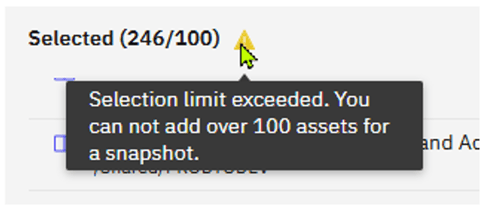 To resolve this:
Split the backup into multiple snapshots (e.g., Snapshot A: folders 1–7, Snapshot B: folders 8–14)
Name each snapshot clearly to indicate it is part of a set: PAW_Backup_[ClientName]_2026-05-18_Part1.gz, PAW_Backup_[ClientName]_2026-05-18_Part2.gz
Export and store each .GZ file individually
Document which folders are covered in each part, so restoration is straightforward.
Once all assets are selected and any permissions issues resolved, click the blue Create button at the bottom right.
Once the snapshot is created, it appears in the left-hand Snapshots list. Select it, review the asset inventory in the Content tab, then Export it as a .GZ file.
Once the export completes, your browser will download the .GZ file automatically. The file will save to your local Downloads folder, ready to be stored in its final location.
The .GZ file is only valuable if stored somewhere reliable and accessible during a DR event, independent of the server being restored. We recommend that you store it on the cloud server at the same directory level as the data directory. Keep it outside any folder structure that may be wiped during a restore.
A key distinction in PAW’s content structure is the difference between the Shared folder and individual users’ Personal folders:
| Shared Folder | Personal / User Folders |
|
|
Note: The Personal folder visible in the LCM asset selector refers to the logged-in admin’s own personal space (not other users’ personal folders). To back up another user’s personal content, you must navigate to that specific user’s folder individually.
LCM captures PAW front-end assets— books, dashboards, and report-level permissions— but it does not export PAW Groups or user accounts. These must be handled separately.
Refer to the Solution Brief for a full walkthrough of how to export PAW Groups and user accounts.
If a DR event occurs, follow these steps to recover PAW content from a previously exported .GZ file.
Go to Administration → Lifecycle Management.
Click Import and select your saved .GZ backup file.
Once imported, the snapshot appears in the Snapshots list. Select it.
Review the Content tab to confirm assets look correct.
Click Deploy to restore assets back into the PAW environment.
Verify restored content is in the correct folder locations and permissions are intact.
Re-create PAW Groups using your exported Groups file from Administration → Users and Groups.
Re-import users from your exported Users CSV if needed.
We recommend a three-tier approach covering routine snapshots, change-triggered backups, and on-request personal folder coverage:
|
Frequency |
Scope |
Notes |
|
Quarterly |
Shared folder (LCM .GZ) + User CSV + Groups record |
Assign a named owner per client. Log date, PAW version, executor. |
|
Ad-hoc |
Shared folder; personal folders on client request |
Trigger: new dashboards, templates, group changes, major deployments |
|
On Request |
Individual personal folders (named users only) |
Client must proactively notify us. Not part of the standard schedule. |
Effective immediately, the following actions should be completed for every cloud-hosted client.
Perform an initial Shared folder LCM export for each cloud customer as soon as possible.
Export the user list as a CSV from Administration → Users and Groups → Users tab and store with the .GZ file.
Export PAW Groups from Administration → Users and Groups → Groups tab and store with the .GZ file.
Assign a named owner responsible for quarterly recurring backups per client.
Establish a designated storage location per client (cloud server directory).
Ensure the backup admin account has Full Control on all shared PAW assets before running the export.
Notify customers of backup scope and limitations (See Solution Brief for customer communication template)
Document each backup with date, PAW version, and the name of the person who performed it.
For clients with known important personal folder content, coordinate a one-time manual backup of those folders.
Treat this as an urgent stopgap until IBM releases its native Q3 enhancement.
IBM has an enhancement on the roadmap targeted for Q3 that will upgrade PAW backup procedures. This is expected to introduce a more automated backup mechanism natively within Planning Analytics, potentially including personal folder coverage and a scheduled backup chore.
In the meantime, a complete backup can be achieved by combining three exports: the LCM .GZ snapshot for all Shared content, the Users CSV export, and the Groups export (all available from the Administration panel).
Until IBM’s enhancement is released and validated, the Lifecycle Manager export process described in this document is the recommended approach.
Complete backup package = LCM .GZ (Shared folder) + Users CSV + Groups export — all three from Administration.
PAW Groups are NOT in the LCM snapshot, but CAN be exported separately via Administration → Users and Groups → Groups tab.
Personal folders are NOT automatically backed up — notify clients and ask them to flag important personal content.
Run quarterly + ad-hoc after changes. Store all files in Teams and/or on the cloud server. Assign ownership per client. Treat as critical maintenance until IBM’s Q3 enhancement is available.
The ACG blog post “PAW Asset Backup with Lifecycle Manager” provides a solid public-facing overview of this process and can be referenced in client communications: https://www.acgi.com/blog/paw-asset-backup-with-lifecycle-manager