Overcoming Common Challenges with AI-Driven Analytics: Lessons Learned and Future Opportunities
In our previous blog posts, “Discover the Benefits of IBM Cognos Analytics: AI-Powered BI Assistant (Part 1)” and “Seven Ways to Work with BI...
2 min read
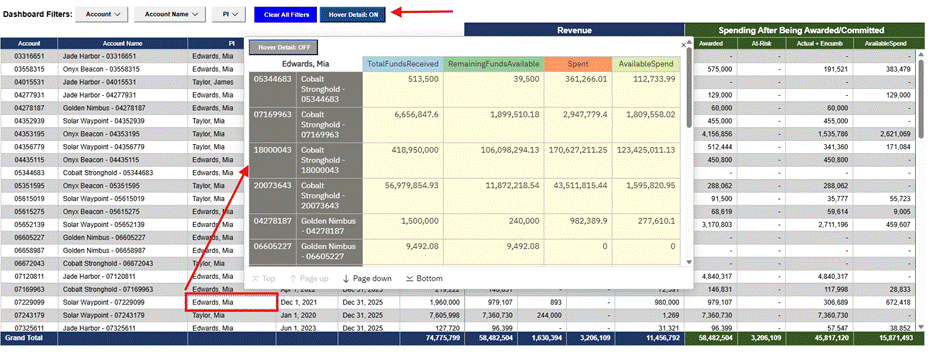
In Part One, we showed how AI collaboration made Cognos Analytics custom controls practical to build. This post covers how we built one: a hover control that shows a filtered detail report for any cell in a list or crosstab.
We solved three problems: finding the cell, passing the filter, and making the control reusable.
Cognos does not tell a custom control which cell is under the mouse, so we read the rendered report itself. Using browser inspection, we found that Cognos tags every cell with a specname attribute that names its role.
One technique covers both report types, and it is anchored to attributes Cognos actually renders, not to guesses about layout.
The classic way to pass a value to a report URL (p_Account=value) did not work reliably in Cognos 12.1. The detailed report would open, but unfiltered.
The fix was the promptParameters argument, which takes a small JSON list of parameter names and values:
/bi/?pathRef=/content/.../AccountDetail&prompt=false&action=run
&promptParameters=[{"name":"p_Account","value":{"use":"12345"}}]
The control builds this URL on each hover and loads it in a popup frame. The detailed report runs with Cognos's normal security and data access, so nothing is bypassed.
All behavior lives in a JSON block that a report author passes into the control. Adding hover detail to a new report takes minutes and no code.
{
"cognosServer": "https://yourserver/ibmcognos",
"targetReportPathRef": "/content/folder/DefaultDetail",
"contextMappings": [
{ "sourceColumn": "Account", "targetParameter": "p_Account" }
],
"columnReports": [
{ "sourceColumn": "PI",
"targetReportPathRef": "/content/folder/PIDetail",
"targetParameter": "p_PI" }
],
"defaultEnabled": true
}
The work was a fast loop: build, deploy to Cognos, test, find the root cause, fix. AI sped up every step, but the Cognos expertise decided which answers were right. Three examples:
The control is ready for production on Cognos Analytics 12.1, and the same approach powers other controls we have built, such as coordinated filters with a single Clear All button. Your Cognos platform can do more than it ships with. The work to unlock that is now hours, not months.