Best Practices for IBM Planning Analytics (TM1) Integration
Effective integration of IBM Planning Analytics (TM1) with the existing infrastructure is usually one of the top priorities of organizations looking...
3 min read
Every IBM Planning Analytics environment eventually outgrows simple chores. You start with a few scheduled TI processes. You add more. Soon, the processes become interdependent. Execution order begins to matter, failures must be traceable, and process status needs to be visible without relying on external tools.
The common approaches all have drawbacks:
We needed something that lived inside Planning Analytics, showed us status immediately, and handled dependencies properly. So, we built it.
The solution described here is a cube-based job scheduler built entirely inside Planning Analytics. It consists of ten TI processes and a single chore that runs every five minutes and handles execution. All configuration and runtime state, including schedules, dependencies, execution statuses, and next run times, are stored in a cube. This means the full state of the batch process is visible directly within the model.
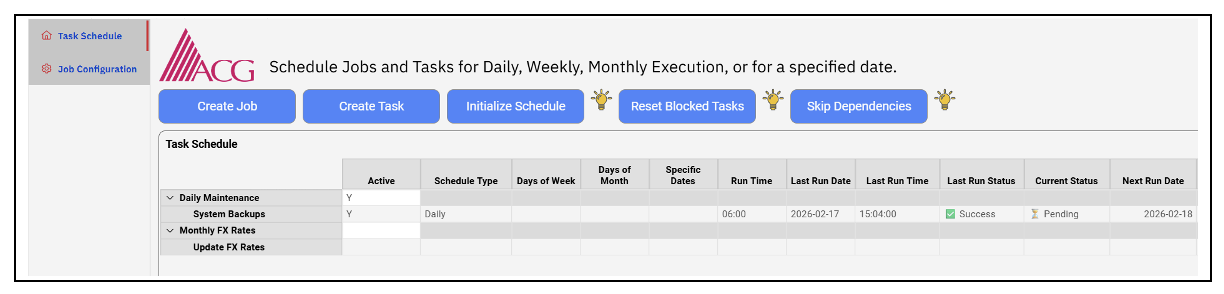
Jobs and tasks are stored in the dimension Dimension:System - Scheduled Jobs, and are organized in a hierarchical structure, where jobs are parent elements, and tasks are children elements beneath them.
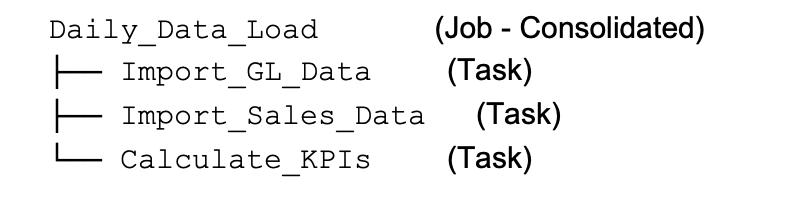
The emoji indicators are not just cosmetic. Open the cube view and you immediately see:
|
Task |
Last Status |
Current Status |
Next Run |
|
Import_GL_Data |
✅ Success |
⏳ Pending |
2026-02-18 |
|
Import_Sales_Data |
✅ Success |
⏳ Pending |
2026-02-18 |
|
Calculate_KPIs |
❌ Failed |
🚫 Blocked |
2026-02-17 |
|
Generate_Report |
✅ Success |
⏸ Waiting |
2026-02-17 |
The cube provides a single view of all tasks and their current state.
Every 5-15 minutes, the chore runs the master process, Check and Execute.
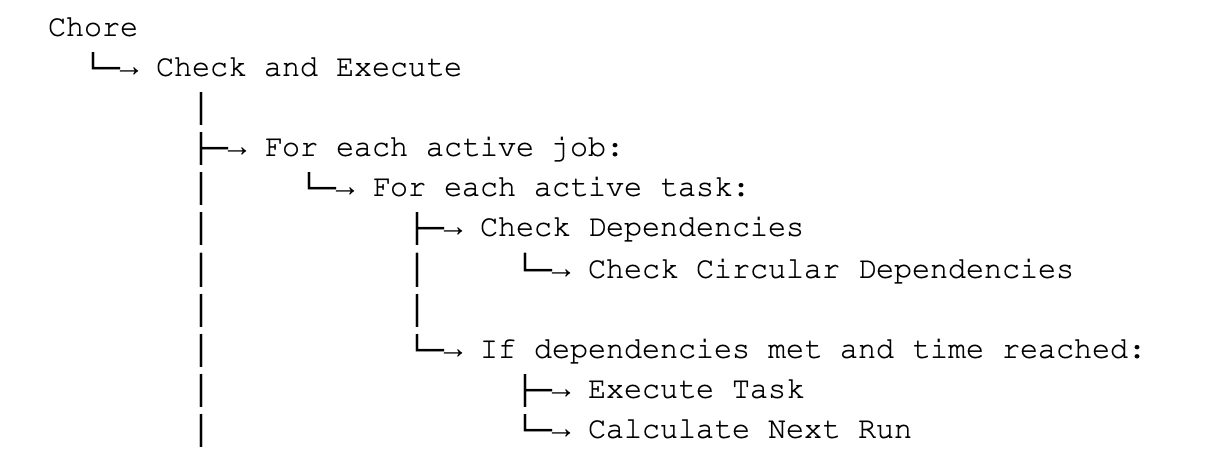
Dependencies are validated before any task runs. The scheduler supports three dependency modes:
SameDay — requires the dependency to have completed successfully on the current calendar day. Use this for daily sequential processes (where yesterday's run does not count).
LastRun — requires the most recent execution of the dependency to have succeeded, regardless of date. Use this in scenarios where execution frequencies differ, such as weekly processes relying on monthly setup tasks.
SameCycle — requires the dependency to have completed successfully within the current scheduling cycle. This is used for processes that run multiple times per day. Use this for tasks that run multiple times per day.
When a task fails:
Its status becomes ❌ Failed.
Any task depending on it becomes 🚫 Blocked.
The Blocked By field shows which dependency failed.
The Last Run Message contains error details.
Blocked tasks do not execute until the issue is resolved and the Reset Blocked Tasks process is run. This prevents downstream processes from running on incomplete or invalid data and makes the root cause immediately visible.
|
Process |
Purpose |
Called By |
|
Check and Execute |
Master loop, runs via chore |
Chore |
|
Check Dependencies |
Validates prerequisites |
Check and Execute |
|
Check Circular Dependencies |
Prevents infinite loops |
Check Dependencies |
|
Execute Task |
Runs target TI, captures result |
Check and Execute |
|
Calculate Next Run |
Determines next execution date |
Execute Task |
|
Initialize Schedule |
Recalculates all Next Run Dates |
Manual |
|
Create Job |
Adds new job element |
Manual |
|
Create Task |
Adds new task with validation |
Manual |
|
Reset Blocked Tasks |
Clears failed/blocked status |
Manual |
|
Skip Dependencies |
Bypasses dependency check once |
Manual |
The core execution process:
Validate ProcessName attribute exists.
Validate target process exists.
Set Current Status = 🔄Running
Set Last Run Date/Time
Execute target process, capture return code.
If success → Last Run Status =✅ Success
If failure → Last Run Status =❌ Failed + capture error
Set Current Status = ⏳ Pending
Calculate next run date.
Return codes 0 (normal), 1 (minor error), and 2 (ProcessBreak) are treated as success. Code 3 (ProcessQuit) and above are failures.
Consider two scheduled jobs.
Job 1: Daily_Data_Load (Schedule: Daily 06:00)
Import_GL_Data → No dependencies.
Import_Sales_Data → Depends on Import_GL_Data (SameDay)
Import_Inventory → Depends on Import_GL_Data (SameDay)
Calculate_KPIs → Depends on Import_Sales_Data, Import_Inventory (SameDay)
Job 2: Daily_Reporting (Schedule: Daily 07:00)
Generate_Report → Depends onDaily_Data_Load|Calculate_KPIs (SameDay)
Email_Distribution → Depends onGenerate_Report (SameDay)
On a normal day, execution proceeds sequentially as dependencies are satisfied:
06:00 — Import_GL_Data runs (no dependencies)
06:02 — Import_Sales_Data and Import_Inventory run (GL succeeded)
06:05 — Calculate_KPIs runs (both imports succeeded)
07:00 — Generate_Report runs (KPIs succeeded, cross-job dependency)
07:03 — Email_Distribution runs (report succeeded)
If Import_Sales_Data fails, Calculate_KPIs does not run because its dependencies are incomplete. Generate_Report and Email_Distribution are automatically blocked. The cube immediately reflects the failure and blocked states.
06:00 — Import_GL_Data runs ✅
06:02 — Import_Sales_Data fails ❌
06:02 — Import_Inventory runs ✅
06:05 — Calculate_KPIs marked ⏸ Waiting (Sales not complete)
07:00 — Generate_Report marked 🚫 Blocked (KPIs never ran)
07:00 — Email_Distribution marked 🚫 Blocked (Report blocked)
In this case, you can open the cube, see exactly what failed and what is blocked, fix the issue, run Reset Blocked Tasks, and the pipeline resumes.
We recommend this approach for a number of use cases:
Batch processing pipelines with dependencies.
Overnight loads that need sequencing
Environments where visibility into job status matters
Teams that want everything in TM1 without external tools
On the other hand, it is not designed for:
Sub-minute scheduling (minimum granularity is chore frequency)
Event-driven execution (this is schedule-based)
Distributed TM1 environments (designed for single server)
Before implementation:
Monitoring required checking multiple systems and reviewing log files to determine whether overnight processes completed successfully.
After implementation:
With the scheduler in place, execution state, dependencies, and failures are visible in a single cube view. Root causes are identifiable without manual log analysis.
The scheduler has been running in production for several months. It handles our daily loads, weekly reports, and monthly close processes. When something fails, we know immediately and can trace the issue without digging through log files.
The source code is available at: