Benefits of IBM Cognos Analytics AI-Powered BI Assistant – Part 1
The Cognos Analytics BI Assistant was first introduced in version 11.2 of IBM Cognos Analytics. This version was released in June 2021, bringing...
3 min read
A JavaScript control evolved into a coordinated data filter that meets real business needs.
Our team was tasked with delivering an IBM Cognos Analytics report that would serve as a daily dashboard tool for business users. The aim seemed straightforward: to provide intuitive filtering so users could slice and dice data across multiple dimensions. But there was a catch. The users lived in Excel.
For decades, business users have relied on Excel's familiar filtering paradigm. Click a dropdown arrow, search for values, select multiple items, and see results instantly. This interaction pattern is so deeply ingrained that when users encounter enterprise BI tools, they instinctively look for the same Excel experience. The challenge with IBM Cognos Analytics, as with many enterprise BI platforms, is that the out-of-the-box prompt controls do not provide this familiar Excel-like experience, lacking the polish and interactivity that modern business users expect.
Since version 11.0.4, Cognos Analytics has supported custom JavaScript controls to allow developers to create sophisticated UI components that integrate with Cognos parameter management while providing a polished user experience.
When we began searching for solutions, the custom control CustomSelectWithSearch.js provided a solid foundation. This is a styled dropdown button that, on hover, reveals a searchable list of checkbox options tied to a Cognos parameter. Key features include a search box with "Starts With" or "Contains" modes, multi-select checkboxes, and a visual star indicator when selections were active.
The control worked with an Auto Submit option, refreshing the report immediately when users made selections. While this was sufficient for simple use cases, our requirements were more complex.
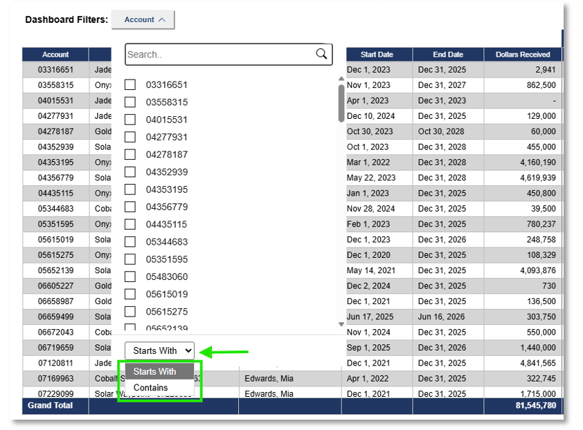
Figure 1: The filter control expanded, showing the searchable checkbox list, 'StartsWith' or contains filter mode, and Auto Submit.
The business requirement called for multiple filter controls on a single report, each tied to a different dimension. Users needed to filter by Account, Account Name, PI (Principle Investigator), Subaccounts, Departments, Years and other slicers all working together to refine a single visualization.
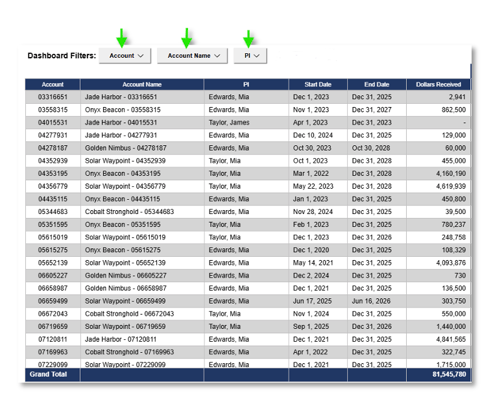
Figure 2: Multiple coordinated filter controls (Account, Account Name, PI) allfiltering a single data visualization.
With the original control's auto-submit behavior, every checkbox click triggered a report refresh. This was acceptable for a single filter, but with four or five filters on a page, the experience became frustrating. Users would select a region, wait for the refresh, select a category, wait again, and so on.
The solution was to evolve the control to support an explicit APPLY button. Users could make all their selections across multiple filters, then click a single button to execute the query with all values set.
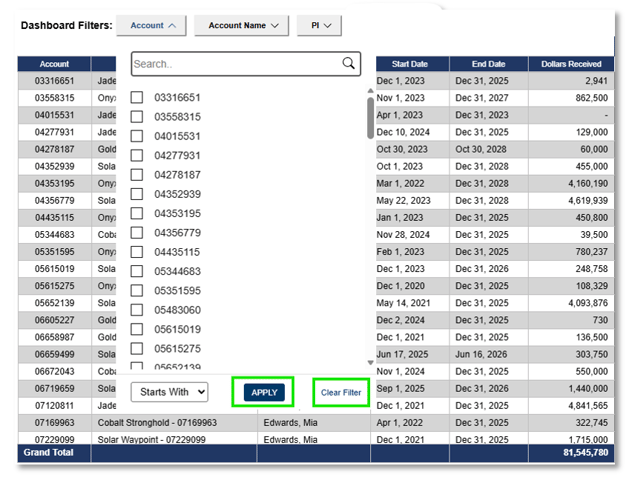
Figure 3: Each filter can be individually selected, applied or selected values cleared
As users adopted the multi-filter reports, they wanted a quick way to reset everything and return to the unfiltered view. Clicking "Clear Filter" on each of four or five controls was tedious; what was needed was one button to clear all filters at once.
The technical challenge was less obvious. Each filter control operates independently with no shared state. Each writes to its own parameter. There was no built-in mechanism to clear all parameters managed by custom controls simultaneously while not affecting other parameters that were used for other controls such as “as of date.”
The solution in V4 introduced the global parameter registry. When each filter control initializes, it registers its parameter name to a shared global array, accessible via window.ClearableFilterParameters.
if (this.m_sParameter) {
window.ClearableFilterParameters = window.ClearableFilterParameters ||[];
if (window.ClearableFilterParameters.indexOf(this.m_sParameter) === -1){
window.ClearableFilterParameters.push(this.m_sParameter);
}
}
This self-registration approach brings several advantages. There is no manual configuration; the architecture is loosely coupled, so filter controls do not need to know about the Clear All button, and vice versa. If a filter control is removed from the report, it simply stops registering, and the Clear All function adapts automatically. A companion control, ClearAllFilters, reads from this global registry and clears all registered parameters in a single action.
V4 also enhanced visual feedback. The original star indicator was easy to miss, so V4 added green label text when a filter has active selections, providing users with the ability to quickly scan and see which filters are engaged.
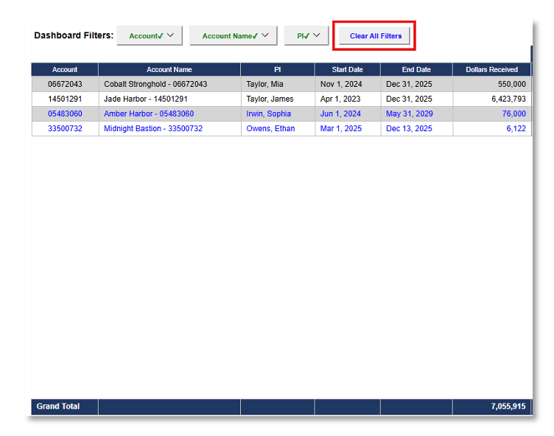
Figure 4: Active filters display checkmarks (Account✓, Account Name✓, PI✓) for-at-a-glance status. The Clear All Filters button resets all filters in one click.
|
Capability |
Original |
V4 |
|
Search box |
✓ |
✓ |
|
Multi-select |
✓ |
✓ |
|
Clear individual filter |
✓ |
✓ |
|
APPLY button |
✗ |
✓ |
|
Global parameter registry |
✗ |
✓ |
|
Green label when active |
✗ |
✓ |
|
Coordinated Clear All support |
✗ |
✓ |
This journey taught us that it is important to take the user's mental model into consideration. Business users do not think in terms of parameters and data stores but rather in terms of filtering data like in Excel.
The loose coupling pattern proved invaluable. The global registry allowed Clear All functionality to be added without modifying individual filter controls. New requirements can often be addressed by adding new controls rather than rewriting existing ones.
Finally, visual polish matters more than developers typically assume. The functional differences between the original and V4 are relatively small, but the cumulative effect of the APPLY button, green indicators, and coordinated clearing transforms the experience from "workable" to "intuitive."
For organizations running Cognos Analytics, the custom control capability represents an opportunity to differentiate your reporting experience while staying within a governed, enterprise-supported platform.
The filter controls discussed in this post were developed for IBM Cognos Analytics 12.1.